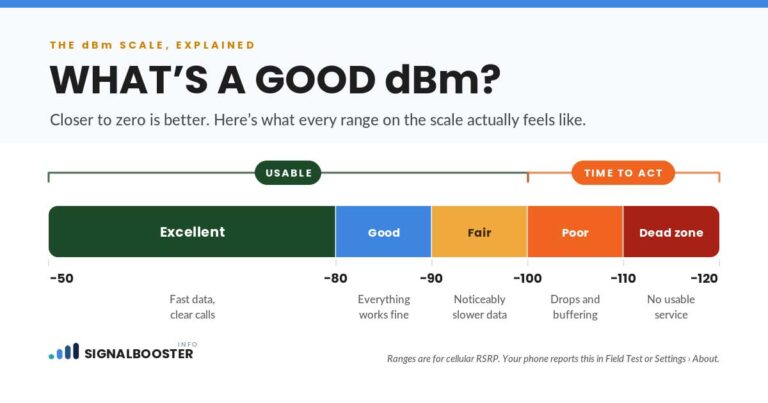
Your phone's signal bars are a rough estimate, not a measurement. The real number is called dBm (decibel-milliwatts), and every phone can show it if you know where to look. On iPhone, dial *3001#12345#* and tap call to open Field Test Mode, then find the RSRP value. On Android, go to Settings, then About Phone, then Status, then SIM Status, or dial *#*#4636#*#* on phones that still support it. dBm is a negative number: the closer to zero, the stronger the signal. Above -80 dBm is generally strong, and below -100 dBm is weak enough to cause real problems.
Why Bars Lie (and dBm Doesn't)
Signal bars are not standardized. Every manufacturer decides its own formula for how many bars to show at a given signal strength, and carriers can tune that formula too. That's why two phones sitting side by side, on the same carrier, can show a different number of bars for the exact same physical signal. Bars are also coarse: a phone might show "3 bars" across a wide range of actual signal power, from perfectly usable to already struggling.
dBm doesn't have that problem. It's a direct measurement of the power your phone's radio is receiving, expressed on a logarithmic scale. There's no manufacturer rounding, no marketing-friendly rendering, just a number. This is the same standard our guide to why signal is weak at home uses to explain dead zones, and it's the standard we hold ourselves to across this site: measured dBm, not bars, as stated in our editorial policy.
iPhone: Field Test Mode, Step by Step
- Open the Phone app and go to the keypad.
- Dial
*3001#12345#*and tap the green call button. - Field Test Mode opens instead of a phone call. You'll see a dashboard of signal metrics rather than the normal dialer screen.
- Look for the LTE or 5G section and find the value labeled RSRP (Reference Signal Received Power). That number, shown as something like -95, is your real signal strength in dBm.
- To exit and return to normal bars, dial the same code again.
One honest caveat worth knowing before you try this: not every iPhone model or iOS version displays an RSRP value, due to chipset and carrier limitations on Apple's side. If you dial the code and see metrics but no clear RSRP number, that's a device or carrier restriction, not something you did wrong.
Android: Two Ways to See Your Real dBm
Android doesn't hide this behind a secret dashboard the way iPhone does, but the exact menu path varies by manufacturer.
Method 1: Settings menu. Go to Settings, then About Phone, then Status (sometimes labeled Status Information), then SIM Status. On stock Android and most Pixel phones, the signal strength appears here directly in dBm.
Method 2: Dial code. Dial *#*#4636#*#* to open the phone information menu. This still works on many Android phones, including current Pixels, but Samsung has blocked it on newer Galaxy models. If you have a recent Samsung phone and that code does nothing, try *#0011# instead, which opens Samsung's own service mode with RSRP, RSRQ, and SINR readings.
If neither built-in method shows a number on your specific phone, a free network-information app such as NetMonster or Network Cell Info Lite will pull the same dBm reading regardless of what your manufacturer has restricted. We're not affiliated with either app; they're mentioned only because they solve a real gap for phones whose menus don't cooperate.
Reading the Number: What Counts as Weak, Usable, and Strong
Once you have a dBm number, here's what it means in practice. These are general industry reference ranges, not a measurement from any specific device, carrier, or piece of equipment, and real-world results shift slightly depending on whether you're on 4G LTE or 5G.
| dBm range | What it generally means | What you'll notice |
|---|---|---|
| -50 to -80 | Excellent to strong | Fast data, reliable calls, a booster is unlikely to add much |
| -80 to -100 | Good to fair (usable) | Fine outdoors or near windows; interior rooms may start to struggle |
| -100 to -110 | Weak | Slower data, occasional dropped calls, basements and interior rooms are difficult |
| Below -110 | Very weak, near dead zone | Calls fail to connect, data is effectively unusable |
A quick way to keep this in perspective: because dBm is logarithmic, a 10 dBm change represents a real, roughly tenfold difference in received power, not a small tweak. If your reading moves from -110 to -95 after any change to your setup, that's a substantial, measurable improvement, not noise.
The Other Half of the Story: What dBm Doesn't Tell You
This is the part most guides skip, and it matters. A dBm number alone doesn't tell you everything about how your phone will actually perform.
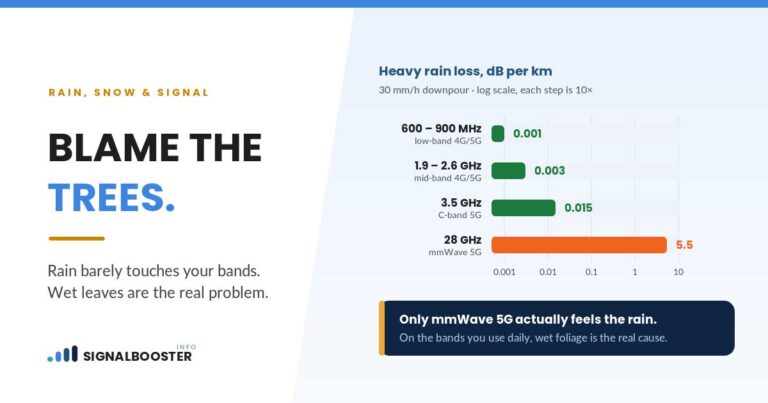
Band and frequency matter as much as the number. A -95 dBm reading on a low-frequency band (the kind that travels farther and passes through walls more easily) will often feel noticeably better indoors than the identical -95 dBm reading on a high-frequency band, which loses strength quickly once it has to get through a wall or two. Two locations can report the same dBm and behave very differently.
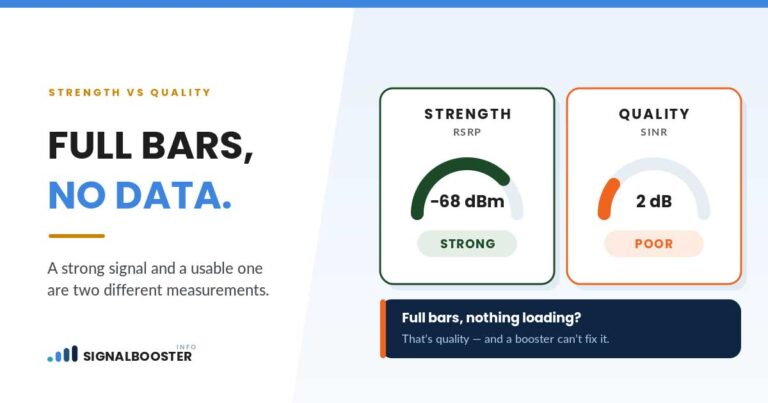
Network congestion isn't visible in dBm at all. dBm measures the raw radio power your phone is receiving from the tower, not how many other devices are competing for that same tower's capacity. It's entirely possible to have a strong dBm reading, say -75, and still get slow data at 6 p.m. in a crowded apartment building, because the tower itself is oversubscribed at that moment. That's a congestion problem, not a signal problem, and no booster fixes it.
Signal quality (not just power) affects what you experience. Metrics like RSRQ and SINR, which sit next to RSRP in Field Test Mode and most Android status screens, describe interference and noise. Two spots with the same RSRP can perform differently if one has more interference riding along with it.
A single reading is a snapshot, not a guarantee. Signal strength fluctuates by time of day, weather, and even which way you're facing in a room. One good reading doesn't mean the spot is reliably good; one bad reading during a busy hour doesn't necessarily mean the spot is a lost cause.
Logging Before/After Numbers Like a Technician Does
If you're trying to decide whether a signal problem is real, or trying to prove whether something you changed actually helped, a single dBm reading isn't enough. Log it the way a technician would.
- Pick three to five fixed spots in your home, including whichever room has the worst signal and one central spot you use most.
- At each spot, record the dBm reading using the iPhone or Android steps above. Take readings at a similar time of day over a couple of days, since signal naturally fluctuates.
- Write down the date, the spot, and the dBm value for each reading, in a notes app or on paper.
- If you install a booster, switch carriers, or try Wi-Fi calling, take a fresh set of readings at the exact same spots afterward.
- Compare the before and after numbers at each spot rather than relying on memory or bars. A genuine improvement will show up as a meaningfully smaller (less negative) number, not just more bars on the screen.
This is also the honest way to evaluate which fix is worth pursuing before you spend anything. If your logged numbers point to a congestion problem rather than a weak-signal problem, a booster won't help, and switching carriers might be the better next step. If your readings are consistently weak across every spot in the house, it's worth understanding whether a signal booster is legal to install before you buy one. And if you want the fundamentals of how boosters actually work before deciding anything, our guide to what a signal booster is covers that in plain language.
FAQ
What is a good dBm signal strength?
Generally, anything from -50 to -80 dBm is considered strong, -80 to -100 is usable but can weaken indoors, and anything below -100 is weak enough to cause dropped calls and slow data.
Does the dBm scale work the same for 5G and LTE?
The direction is the same (closer to zero is always better), but the exact thresholds shift a little depending on the network type. Treat the ranges above as a general guide rather than an exact cutoff for every technology.
Why doesn't Field Test Mode show an RSRP number on my iPhone?
Some iPhone models and iOS versions don't display RSRP due to chipset or carrier restrictions. If the dashboard opens but no clear number appears, that's a device limitation, not a mistake in how you dialed the code.
Do I need to install an app to check dBm on Android?
Not usually. Most Android phones show it through Settings, About Phone, Status, SIM Status, or through the *#*#4636#*#* dial code. If your specific phone hides both, a free network-info app can fill the gap.
Can a strong dBm reading still mean bad service?
Yes. A strong dBm number tells you the radio signal is powerful, but it says nothing about tower congestion or interference. See our boosters FAQ page for more on how these factors interact with whether a booster will actually help.